I can't log in. What should I do?
Forgotten username and/or password.
You can recover your username or reset your password here: http://www.blogger.com/forgot.g This form will send an email to the address registered on your account. The email will include a link to a page which will display your username and allow you to create a new password. If you have multiple usernames, you will instead see a list of them, and you will have the option of choosing one whose password you want to reset.
Password recovery email not received.
Check your Spam/Junk/Bulk Mail folder in case the message got mis-routed.
Try several email addresses, in case you didn't use your primary one for Blogger.
Try recovering your username instead of your password. You may have mis-remembered your username and be sending password recovery emails to another user. (We recommend trying this, even if you think you are sure of your username.)
Forgotten email address.
If you can't remember what email address you used when you created your account, start by making a list of all your addresses (including old ones that you might have used when you signed up). Then enter each one by turn into the username recovery form. Most will give you an error, until you hit the one that you actually used, in which case you'll see a message indicating that your username has been sent.
No access to email address for recovering login information.
If you signed up with an old email address that you no longer have access to, or if you made a typo in your email when registering, then you will not be able to use the login recovery functions. In this case, you'll need to write to us for help. To speed things up, please provide us with the following information:
Your previous email that you registered with, as well as your current one.
Your username, if you know it.
The first and last names you registered on your account.
Your blog's URL.
"Incorrect password" error even with a correct password.
If you are certain that you are using the correct password, but still see an error about it, then the problem is most likely with your username. This can be a little confusing, but if you accidentally use someone else's username, then your own password will not match it and Blogger will display an error, since it thinks you are really the other person trying to log in. The thing to do in this case is to recover your username.
Continual prompting to login, or "Session Expired" messages.
If you repeatedly get bounced back to the login screen, with no message about an incorrect username or password, then this is caused by your browser not retaining your login information correctly. You may also see "Session Expired" messages in these cases. To fix this you need to troubleshoot your browser, so try the following:
Clear your cache. Delete your Blogger cookie.
Check your Cookie settings.
Check your JavaScript settings.
Quit your browser and restart it.
Use another browser. Browse Happy—all the cool kids are doing it.
Note that if you have a firewall, you should check its cookie settings as well, to make sure it will allow Blogger's cookies to be set. Check the manual or documentation for the firewall for information on this.
Last Resorts
Restart your computer.
Try a different computer.
Try a different Internet connection.
Take a deep breath - the world isn't ending - write us for help. Be sure to give us as much information as you can about your account and the problems you are experiencing.
Cookies
Your browser needs to accept cookies. Many browsers have a simple choice in the Options or Preferences that will let you choose to either accept or reject cookies. In Internet Explorer, it is a little different. If you go to Tools > Internet Options > Privacy you will find a sliding scale. If it is set to High or Block All, Blogger will not be able to set the cookies it needs to log you in. A setting of Medium-High or lower will work. This is what it looks like:
JavaScript
Blogger also needs to have JavaScript enabled in order to function properly. Again, many programs have this as a simple option in the Preferences, but it's a bit trickier in Internet Explorer. Go to Tools > Internet Options > Security and click the Custom Level button. Scroll down until you see the Scripting section and make sure that Active Scripting is enabled. Then click OK to all the windows until you're back at your browser.
Log in ไม่ได้ ทำไงดี?
ลืม username และ/หรือ password
คุณสามารถขอ username หรือ reset password ที่นี่ http://www.blogger.com/forgot.g แบบฟอร์มจะถูกส่งไปให้ตามอีเมล์ที่ได้ลงทะเบียนไว้ ในอีเมล์จะมีลิงค์ไปยังหน้าซึ่งโชว์ username แล้วจะให้คุณตั้ง passoword อันใหม่ ถ้าคุณมีหลาย username, คุณจะเห็นเป็น ลิสต์ ของชื่อทั้งหมด ให้เลือก username อันที่ต้องการจะเปลี่ยน password
ไม่ได้รับเมล์แจ้งการเข้าไปแก้ไข password
ให้ลองดูที่ Spam/Junk/Bulk เผื่อจะอยู่ในนั้น ลองดูหลาย ๆ อีเมล์ ในกรณีที่คุณไม่ได้ใช้อีเมล์หลักลงทะเบียนไว้ , หรือไม่ก็ลองเปลี่ยน username แทนการเปลี่ยน password คุณอาจจะจำชื่อ username ผิดอันแล้วมันจะส่งเมล์ไปยังอีเมล์ของคนอื่น (ยังไงก็ลองเปลี่ยน username นะ ถึงแม้คุณจะมั่นใจว่า username ไม่ผิดก็ตามทีเถอะ ประมาณว่าไหน ๆ ก็ไม่ได้เมล์แล้วนี่ ไม่มีทางให้เลือกแล้วล่ะครับ)
กรณีลืม อีเมล์
ถ้าจำอีเมล์ของคุณไม่ได้ตอนเปิด account, ให้เริ่มจากการ list e-mail ออกมา รวมทั้งอันเก่าซึ่งคุณอาจจะเคยใช้สมัครตอนแรก แล้วก็ให้ไปที่หน้า username recovery form ลองไปเรื่อย ๆ ส่วนใหญ่ มันก็จะ error จนกว่าจะเจออันที่ใช่ ถ้าใช่แล้วล่ะก็ มันจะขึ้นว่า your username has been sent.
ไม่มี e-mail ส่งมาเพื่อแจ้งข้อมูลสำหรับ Log in
ถ้าคุณสมัครโดยใช้ e-mail เก่า ซึ่งคุณไม่ได้ใช้อีกแล้ว, หรือมีการผิดพลาดใน e-mail ตอนลงทะเบียน, นั่นจะทำให้เมล์ส่งไปหาคุณเพื่อแจ้งข้อมูลการ login ไม่ถึงคุณ ถ้าเป็นอย่างนี้ ต้องส่งเมล์หาเราแล้วล่ะwrite to us เพื่อความรวดเร็วในการช่วยเหลือ กรุณาแจ้งรายละเอียดดังนี้
เมล์ที่ใส่ตอนสมัคร(หมายถึงพิมพ์แบบผิด ๆ ไปน่ะครับ) แล้วก็เมล์ปัจจุบัน
Username ถ้าทราบนะครับ
ชื่อ-นามสกุล ที่ใช้ลงทะเบียน
URL ของ blog คุณ
มันฟ้องว่า Password ไม่ถูก ถึงแม้เราจะใส่อย่างถูกต้องแล้วก็ตาม
ถ้ามั่นใจว่าใส่ password ถูกต้อง แต่ยังโชว์ error ถ้างั้น อาจจะผิดที่ username ดังนั้น password ที่คุณใส่ไปมันก็เลยไม่ถูก, ดังนั้นคุณก็คงต้องขอรายละเอียด username ของคุณแล้วล่ะ
ถ้ามัน login แล้วค้างไปนาน ๆ หรือ ค้างจนขึ้นคำว่า Session Expired
ถ้าลอง login ใหม่ อีกที ด้วยข้อมูลที่ถูกต้องทั้ง username และ password, แล้วมันยัง error อาจจะมีสาเหตุจาก browser ของคุณที่มันจำรายละเอียดของคุณอย่างไม่ถูกต้อง. คุณอาจจะเห็นคำว่า Session Expired ในกรณีนี้ เพื่อจะแก้ปัญหาต้องแก้ที่ browser ..ทดลองทำตามขั้นตอนต่อไปนี้ดูนะครับ
Clear your cache.
Delete your Blogger cookie.
Check your Cookie settings.
Check your JavaScript settings.
Quit your browser and restart it.
Use another browser.
Browse Happy—all the cool kids are doing it.
Note : ถ้าคุณมี firewall ต้องดูเรื่องการตั้งค่า cookie ให้ดี ๆ ล่ะ ให้แน่ใจว่ามันอนุญาตให้ Blogger's cookies สามารถตั้งค่าได้ ดูคู่มือ หรือ เอกสารสำหรับข้อมูลเพิ่มเติมเอาเองละกันครับ
สูดหายใจลึก ๆ -มันไม่ใช่กาลอวสานของโลกซะหน่อย write us เพื่อขอความช่วยเหลือ ยังไงก็ให้ข้อมูลเกี่ยวกับบัญชีแล้วก็ปัญหาที่คุณเจอมาให้ละเอียดแล้วกัน
browser ของคุณต้องยอมรับ cookies หลาย ๆ browser มี option ให้เลือกง่าย ๆ ว่าจะยอมรับ หรือไม่ยอมรับ cookies. สำหรับ Internet Explorer ก็จะต่างจากชาวบ้านหน่อย . เข้าไปที่ Tools > Internet Options > Privacy จะเจอตัวเลื่อน ๆ ขึ้นลงถ้าตั้งไว้สูง ๆ หรือ Block All, Blogger จะไม่สามารถ ตั้งค่า cookies ได้ คุณต้องตั้งค่าให้อยู่ที่ Medium-High หรือ ต่ำกว่า จึงจะใช้ได้
Blogger ยังต้องการให้ JavaScript enabled ด้วยนะเพื่อการทำงานที่สมบูรณ์, เช่นกัน หลาย ๆโปรแกรมมี option ให้เลือกง่าย ๆแต่ ก็เหมือนเดิม Internet Explorer ก็ไม่เหมือนกับชาวบ้านเขา หน่อยนึง เข้าไปที่ Tools > Internet Options > Security and click ปุ่ม Custom Level เลื่อนลงไปจนเจอ Scripting section แล้วให้ enabled Active Scripting ซะ แล้วก็คลิก OK ไปทุก ๆ หน้าต่าง จนมันจะกลับมาสู่หน้า browser ของคุณ
Sunday, April 16, 2006
Saturday, April 01, 2006
Blogtimize : ปรับปรุง Blog ซะหน่อยดีกว่า
Blogtimize!
Blogging is near and dear to our hearts here at Inside AdSense. We know you want to get the most out of those posts – but how do you do it?
การทำ Blog เป็นเรื่องใกล้ตัว แล้วก็ใกล้ใจของ Inside AdSense นะ (หูย ขึ้นมา หวานขนาดนี้ ผมแปลผิดป๊ะเนี่ย อิ อิ) เรารู้ว่าคุณอยากโดดเด่นกว่าการ post ของชาวบ้าน..แต่แล้วคุณควรจะทำอย่างไรบ้างล่ะ
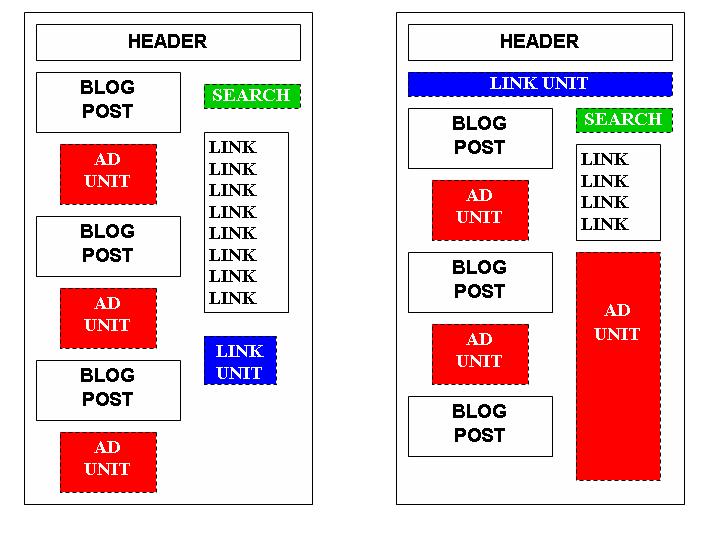
1. Choose the right ad formats Because the typical blog layout uses a narrow section for posts, the medium rectangle fits nicely at the end of each post. The medium rectangle also supports image ads, increasing the competition and revenue potential for that ad space. For shorter posts, a banner may be a better fit.
1.เลือกรูปแบบโฆษณาให้เหมาะ เพราะลักษณะการจัดวางของ blog มีพื้นที่ในการโพสค่อนข้างแคบ โฆษณาแบบ medium rectangle จะเหมาะเจาะมาก เอาวางไว้ใต้โพสแต่ละโพส. โฆษณารูปแบบนี้ยัง มีเป็นแบบ image ads ด้วย เพิ่มการแข่งขันและ รายได้ที่ดีขึ้นสำหรับพื้นที่โฆษณานะ สำหรับการโพสสั้น ๆ ก็เลือกเป็นแบบ banner อาจจะเหมาะกว่านะ
2. Place ads where your readers will noticeBlog main page: Whether the subject is gadgets, gossip, or a glimpse into the writer's personal life, readers are deeply engaged with the content of their favorite blogs. What could be more effective than displaying an ad precisely relevant to that content? An ad after each post can serve as a "commercial break" from reading or as an "action step" to take after reading.
2. แปะโฆษณาตรงผู้อ่านเวบคุณจะมองหา Blog main page ( หน้าหลักของเวบคุณ) อย่างไรก็ตาม หัวข้อ gadgets หรือ gossip หรือ glimpse เอาไว้ใน personal life ของคนเขียนก็ได้ ผู้อ่านจะลงลึกเกาะติดกับ เนื้อหาของ Blog ที่เขาชื่นชอบ อะไรจะมีประสิทธิภาพดีไปกว่าการโฆษณาที่มีคุณค่า โดยมีเนื้อหาสัมพันธ์กับเนื้อหาเวบไซต์ไปได้ล่ะ? แล้วการวางโฆษณาหลังการโพสแต่ละครั้ง จะทำให้ผู้อ่านได้มี "โฆษณาคั่นเวลา" จากการอ่าน หรือ การมีกิจกรรมทำ หลังจากการอ่าน
Individual blog entries: As individual post pages don't have a lot of content, the key is to place ads near your content without bombarding the page with ads. For long entries, try embedding a blended medium rectangle into your post and adding a banner at the end. For short entries, just place one medium rectangle or banner at the end.If there's a comment section after the post, place a banner or a horizontal link unit just above the comment box. Rather than using the traditional Skyscraper in your sidebar, consider using a link unit, which will offer a wider range of topics and may appear less obtrusive.
แต่ละหน้า blog ของเรา : ถ้าแต่ละหน้าของ Blogไม่ค่อยมีเนื้อหาเท่าไหร่, ก็เอาโฆษณาวางใกล้ ๆ เนื้อหาโดยที่ไม่ใช่ว่าทั้งหน้าเวบจะเต็มไปด้วยโฆษณานะ. เพื่อการทำที่ยืนยาว ลอง ทำให้ medium rectangle กลืนไปกับเนื้อหาที่คุณ post แล้วใส่ Banner ไว้ข้างใต้ตอนจบโพสดูครับ สำหรับอันที่โพสสั้น ๆ ก็วาง medium rectangle หรือ banner ไว้ตอนท้าย. ถ้ามีส่วนที่ให้ comment หลังจากโพส ก็วาง Banner หรือ horizontal link unit ไว้เหนือกล่อง comment. แทนที่จะใช้ traditional Skycraper วางที่ด้านข้าง ๆ , ลองใช้ link unit, ซึ่งจะให้ช่วงที่กว้างของหัวข้อ และ อาจจะแสดงโดย less obtrusive อาจจะแปลว่า โชว์แบบไม่ขัดสายตาก็ได้ (ไว้แปลใหม่ ไม่มีดิกครับ แหะ แหะ)
3. Improve targeting How can you ensure that your ads are relevant to a specific post? With section targeting, you can target an ad unit to a specific section of the page, as well as block out irrelevant sections such as the navigational links.
3.ปรับปรุงเป้าหมาย คุณจะมั่นใจได้อย่างไรว่าโฆษณาของคุณนั้นจะเกี่ยวข้องกับเนื้อหาบน blog ที่โพส ด้วย section targeting, คุณจะสามารถ target ad unit ไปยัง ส่วนเฉพาะเจาะจงของหน้านั้น, เหมือน ๆ กับ block ส่วนที่ไม่เกี่ยวข้อง เช่น navigational links (อันนี้อะไรอ่ะ)
4. Customize your ad colors For more seamless integration with the content, blend ad units into the background of your blog. Choose a bold color for the ad title to help draw attention to your ads while ensuring that users don't confuse ads with content.
4.ปรับปรุงสีของโฆษณา ให้กลืน ๆ กับเนื้อหา, รวมมันกับพื้นหลังของ blog เลือกสีหนา ๆ สำหรับหัวข้อโฆษณา เพื่อช่วยให้คนสนใจโฆษณาของคุณ แต่ก็ระวังอย่าให้สับสนว่าเป็นโฆษณาหรือเนื้อหานะ (ยังไงฟะ ก็บอกให้ทำให้กลมกลืน แต่บอกว่าอย่าให้แยกไม่ออก เอากะเขาสิ)

With up to three ad units, one link unit, and one search box on every page, layout options abound! While the suggestions above offer some guidance, you should experiment with different ad unit-link unit-search box combinations on your pages, keeping your particular users' experience in mind when it comes to placement. Most importantly, use custom channels to see what performs most effectively for your site.
ด้วย up to three ad units, 1 link unit แล้วก็ 1 search box เอาวางไว้ทุกหน้าเลย, layout options abound (แปลว่าไรไม่รู้คับ ไม่มีดิก จะหาดิกแล้วมาแก้ให้ครับ) ขณะที่ คำแนะนำด้านบนบอกบางอย่างไปแล้ว คุณก็ควรจะทดลองด้วย ชนิดของโฆษณาแบบต่าง ๆ บนหน้าเวบคุณ จำไว้ว่าคุณกำลังทดสอบประสบการณ์ของผู้ใช้อยู่ในทุกครั้งที่วางโฆษณานะ แต่ที่สำคัญที่สุด, ก็ต้องใช้ custom channels เพื่อตรวจดูว่า การทดสอบอันไหน มีประสิทธิภาพดีที่สุดบนเวบคุณ.
Do you have a "blogtimization" success story? Email us to let us know what worked for you.Posted by Sandra Tsui - AdSense Publisher Support
คุณมีเรื่องราวเกี่ยวกับการปรับปรุง blog แล้วประสบความสำเร็จมั้ย ส่งเมล์มาหาเราสิ บอกเราหน่อยว่าอะไรดีสำหรับคุณ
โดย ซาร่า สุ่ย อิอิ
1/30/2006 06:21:00 PM
Permalink
Blogging is near and dear to our hearts here at Inside AdSense. We know you want to get the most out of those posts – but how do you do it?
การทำ Blog เป็นเรื่องใกล้ตัว แล้วก็ใกล้ใจของ Inside AdSense นะ (หูย ขึ้นมา หวานขนาดนี้ ผมแปลผิดป๊ะเนี่ย อิ อิ) เรารู้ว่าคุณอยากโดดเด่นกว่าการ post ของชาวบ้าน..แต่แล้วคุณควรจะทำอย่างไรบ้างล่ะ
1. Choose the right ad formats Because the typical blog layout uses a narrow section for posts, the medium rectangle fits nicely at the end of each post. The medium rectangle also supports image ads, increasing the competition and revenue potential for that ad space. For shorter posts, a banner may be a better fit.
1.เลือกรูปแบบโฆษณาให้เหมาะ เพราะลักษณะการจัดวางของ blog มีพื้นที่ในการโพสค่อนข้างแคบ โฆษณาแบบ medium rectangle จะเหมาะเจาะมาก เอาวางไว้ใต้โพสแต่ละโพส. โฆษณารูปแบบนี้ยัง มีเป็นแบบ image ads ด้วย เพิ่มการแข่งขันและ รายได้ที่ดีขึ้นสำหรับพื้นที่โฆษณานะ สำหรับการโพสสั้น ๆ ก็เลือกเป็นแบบ banner อาจจะเหมาะกว่านะ
2. Place ads where your readers will noticeBlog main page: Whether the subject is gadgets, gossip, or a glimpse into the writer's personal life, readers are deeply engaged with the content of their favorite blogs. What could be more effective than displaying an ad precisely relevant to that content? An ad after each post can serve as a "commercial break" from reading or as an "action step" to take after reading.
2. แปะโฆษณาตรงผู้อ่านเวบคุณจะมองหา Blog main page ( หน้าหลักของเวบคุณ) อย่างไรก็ตาม หัวข้อ gadgets หรือ gossip หรือ glimpse เอาไว้ใน personal life ของคนเขียนก็ได้ ผู้อ่านจะลงลึกเกาะติดกับ เนื้อหาของ Blog ที่เขาชื่นชอบ อะไรจะมีประสิทธิภาพดีไปกว่าการโฆษณาที่มีคุณค่า โดยมีเนื้อหาสัมพันธ์กับเนื้อหาเวบไซต์ไปได้ล่ะ? แล้วการวางโฆษณาหลังการโพสแต่ละครั้ง จะทำให้ผู้อ่านได้มี "โฆษณาคั่นเวลา" จากการอ่าน หรือ การมีกิจกรรมทำ หลังจากการอ่าน
Individual blog entries: As individual post pages don't have a lot of content, the key is to place ads near your content without bombarding the page with ads. For long entries, try embedding a blended medium rectangle into your post and adding a banner at the end. For short entries, just place one medium rectangle or banner at the end.If there's a comment section after the post, place a banner or a horizontal link unit just above the comment box. Rather than using the traditional Skyscraper in your sidebar, consider using a link unit, which will offer a wider range of topics and may appear less obtrusive.
แต่ละหน้า blog ของเรา : ถ้าแต่ละหน้าของ Blogไม่ค่อยมีเนื้อหาเท่าไหร่, ก็เอาโฆษณาวางใกล้ ๆ เนื้อหาโดยที่ไม่ใช่ว่าทั้งหน้าเวบจะเต็มไปด้วยโฆษณานะ. เพื่อการทำที่ยืนยาว ลอง ทำให้ medium rectangle กลืนไปกับเนื้อหาที่คุณ post แล้วใส่ Banner ไว้ข้างใต้ตอนจบโพสดูครับ สำหรับอันที่โพสสั้น ๆ ก็วาง medium rectangle หรือ banner ไว้ตอนท้าย. ถ้ามีส่วนที่ให้ comment หลังจากโพส ก็วาง Banner หรือ horizontal link unit ไว้เหนือกล่อง comment. แทนที่จะใช้ traditional Skycraper วางที่ด้านข้าง ๆ , ลองใช้ link unit, ซึ่งจะให้ช่วงที่กว้างของหัวข้อ และ อาจจะแสดงโดย less obtrusive อาจจะแปลว่า โชว์แบบไม่ขัดสายตาก็ได้ (ไว้แปลใหม่ ไม่มีดิกครับ แหะ แหะ)
3. Improve targeting How can you ensure that your ads are relevant to a specific post? With section targeting, you can target an ad unit to a specific section of the page, as well as block out irrelevant sections such as the navigational links.
3.ปรับปรุงเป้าหมาย คุณจะมั่นใจได้อย่างไรว่าโฆษณาของคุณนั้นจะเกี่ยวข้องกับเนื้อหาบน blog ที่โพส ด้วย section targeting, คุณจะสามารถ target ad unit ไปยัง ส่วนเฉพาะเจาะจงของหน้านั้น, เหมือน ๆ กับ block ส่วนที่ไม่เกี่ยวข้อง เช่น navigational links (อันนี้อะไรอ่ะ)
4. Customize your ad colors For more seamless integration with the content, blend ad units into the background of your blog. Choose a bold color for the ad title to help draw attention to your ads while ensuring that users don't confuse ads with content.
4.ปรับปรุงสีของโฆษณา ให้กลืน ๆ กับเนื้อหา, รวมมันกับพื้นหลังของ blog เลือกสีหนา ๆ สำหรับหัวข้อโฆษณา เพื่อช่วยให้คนสนใจโฆษณาของคุณ แต่ก็ระวังอย่าให้สับสนว่าเป็นโฆษณาหรือเนื้อหานะ (ยังไงฟะ ก็บอกให้ทำให้กลมกลืน แต่บอกว่าอย่าให้แยกไม่ออก เอากะเขาสิ)

With up to three ad units, one link unit, and one search box on every page, layout options abound! While the suggestions above offer some guidance, you should experiment with different ad unit-link unit-search box combinations on your pages, keeping your particular users' experience in mind when it comes to placement. Most importantly, use custom channels to see what performs most effectively for your site.
ด้วย up to three ad units, 1 link unit แล้วก็ 1 search box เอาวางไว้ทุกหน้าเลย, layout options abound (แปลว่าไรไม่รู้คับ ไม่มีดิก จะหาดิกแล้วมาแก้ให้ครับ) ขณะที่ คำแนะนำด้านบนบอกบางอย่างไปแล้ว คุณก็ควรจะทดลองด้วย ชนิดของโฆษณาแบบต่าง ๆ บนหน้าเวบคุณ จำไว้ว่าคุณกำลังทดสอบประสบการณ์ของผู้ใช้อยู่ในทุกครั้งที่วางโฆษณานะ แต่ที่สำคัญที่สุด, ก็ต้องใช้ custom channels เพื่อตรวจดูว่า การทดสอบอันไหน มีประสิทธิภาพดีที่สุดบนเวบคุณ.
Do you have a "blogtimization" success story? Email us to let us know what worked for you.Posted by Sandra Tsui - AdSense Publisher Support
คุณมีเรื่องราวเกี่ยวกับการปรับปรุง blog แล้วประสบความสำเร็จมั้ย ส่งเมล์มาหาเราสิ บอกเราหน่อยว่าอะไรดีสำหรับคุณ
โดย ซาร่า สุ่ย อิอิ
1/30/2006 06:21:00 PM
Permalink

Subscribe to:
Comments (Atom)